In this outcome I talk about what I did, to learn developing interactive web products, and how I document my work in a version control environment.

Developing semantic HTML and CSS

One of the first exercises that were given to us was to create html code based of a prototype of a simple page, and write it in a way, that if we give it to ChatGPT, it will understand it and create appropriate css for it. That had to be done only by writing semantic code and not giving the chatbot any more instructions. That way it will create a page, similar to ours, only if we give it well written semantic html, which we should always aim for. You can see the result from that experiment here.
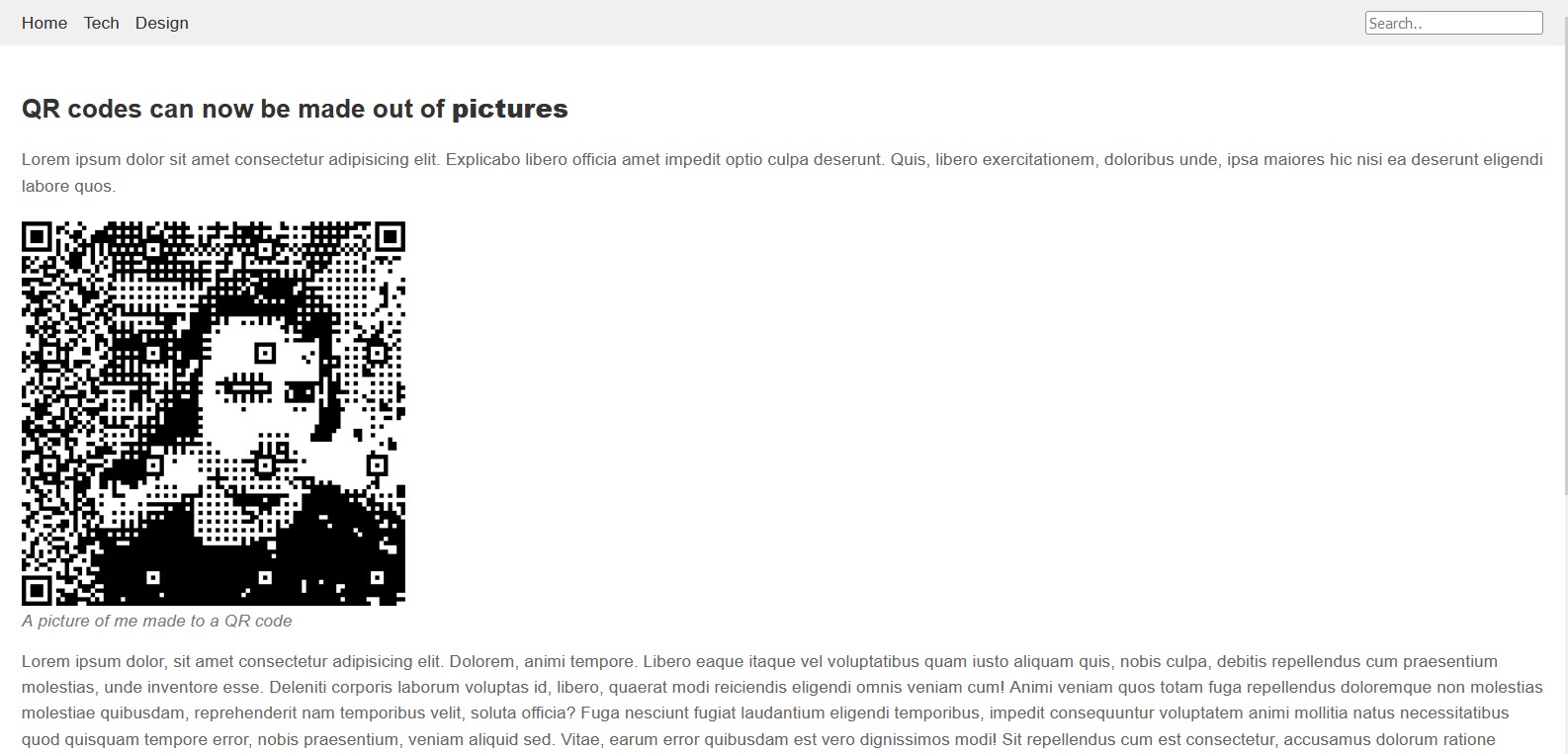
Result of ChatGPT's CSS

A problem that occurred was that, despite the fact that I put the picture in a ‹aside› tag, the chatbot wouldn’t understand the task correctly, if you didn’t specify that you want the picture to be on the side and was always putting it below the text.
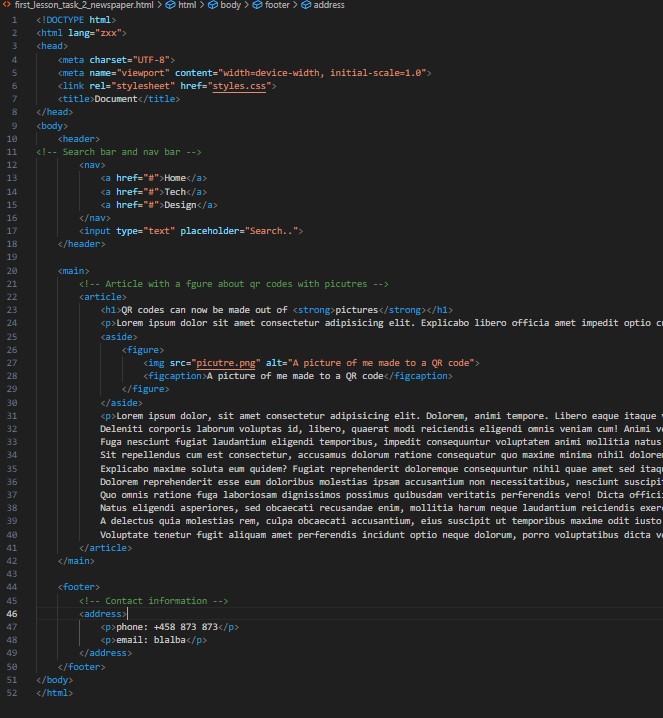
HTML code of the exercise

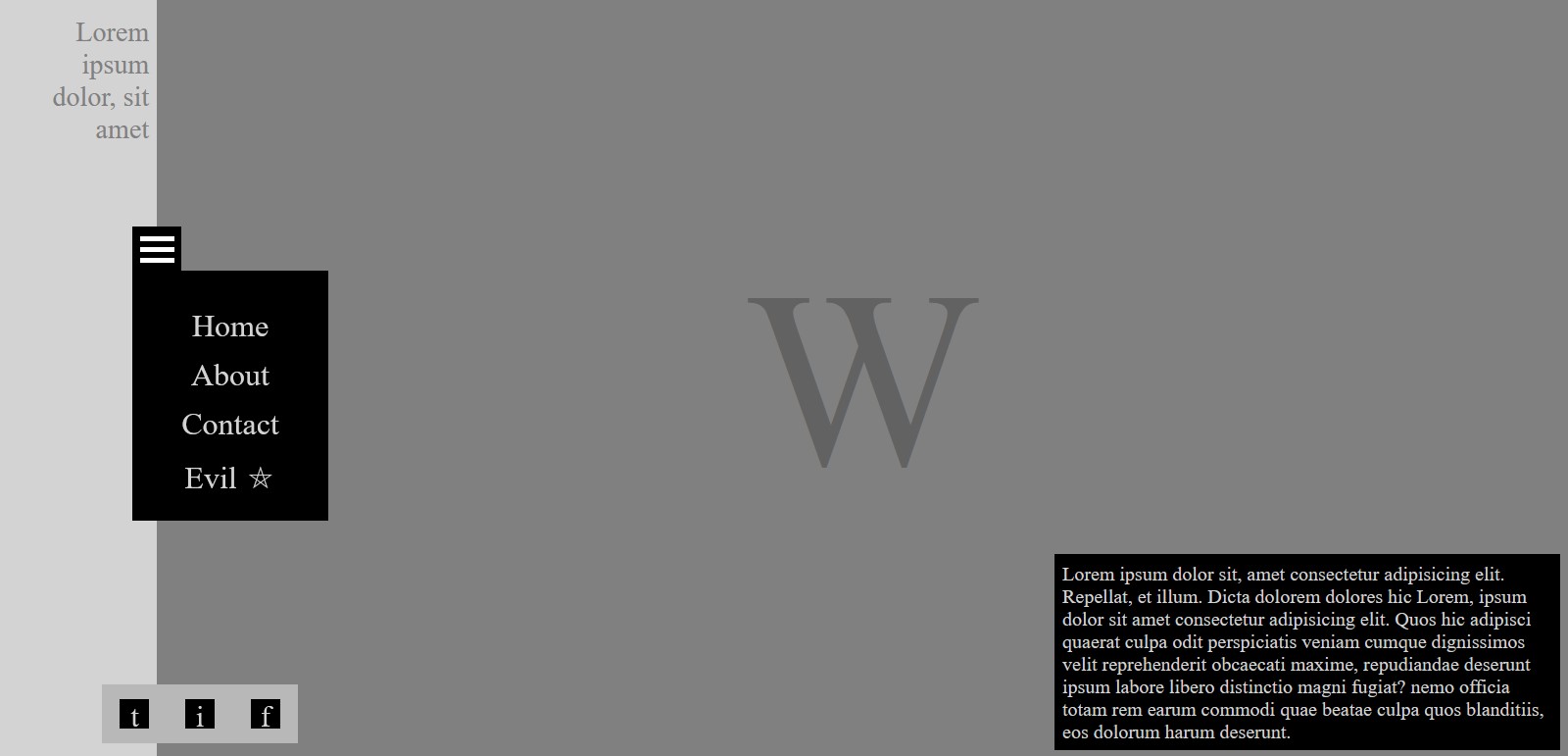
In order to practice what we have learned about css, I did some exercises, that were given to us by Metaxas, where we had to create two pages, only with html and css. The first one had to be split in half, and have the letter M in the middle, that was also split in half. Besides that it had some text in every half, and 3 buttons on the top right corner. Everything was relevantly easy to do, besides splitting the letter in half. After a lot of digging I found this article, that helped me a lot, and I managed to do the task successfully.

The other one was a bit more challenging, because we had to create a drop-down menu, without using anything but CSS. I had no-idea on how to do that back then, but I watched some tutorials and found how to take use of the display: none; so, I can create the dropdown, which also worked. For that task it was also important to make some research on what the right semantic tag for the description box on the bottom right corner is. According to MDN” … the ‹dialog› element is used to create both modal and non-modal dialog boxes. Modal dialog boxes interrupt interaction with the rest of the page being inert, while non-modal dialog boxes allow interaction with the rest of the page.”, so based on that I decided to use that element for it.
Form Validation

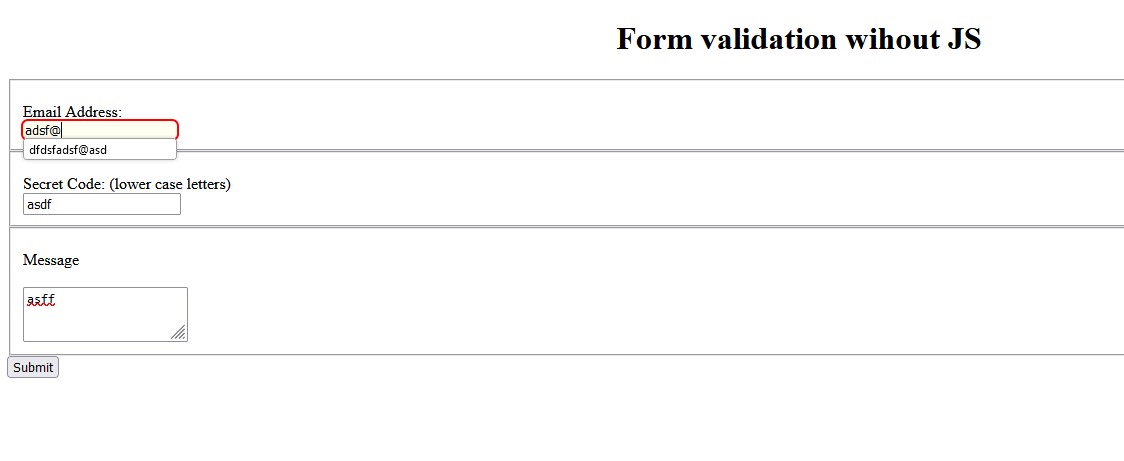
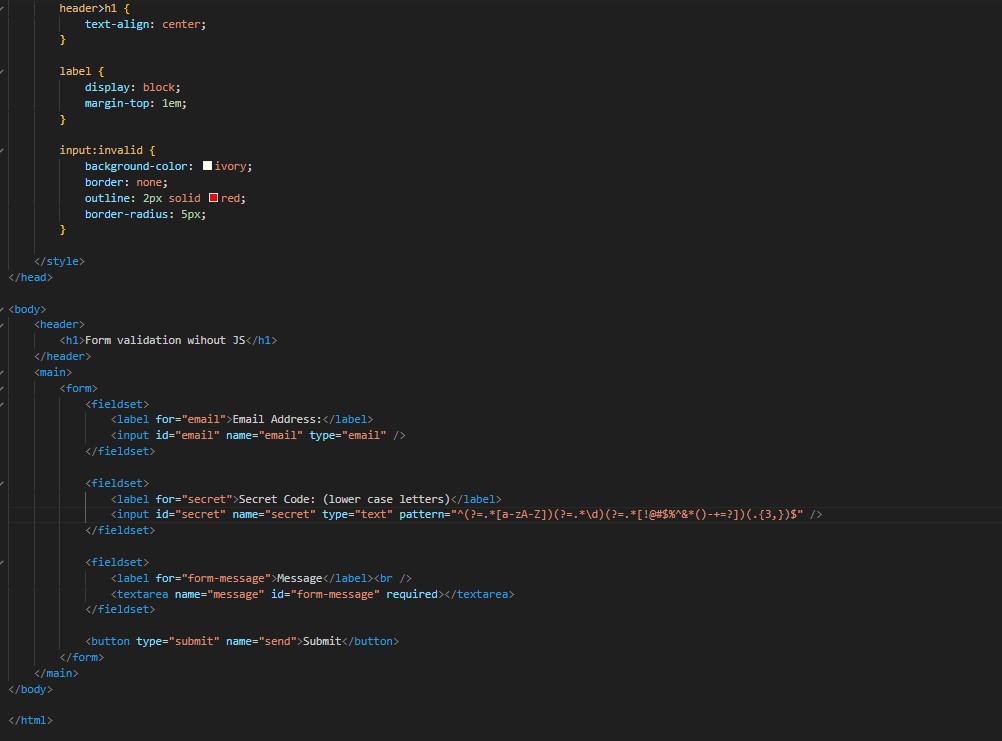
I learned that you can also perform form validation without any JavaScript, only using html and CSS. I’ve created a sample, for the sake of testing, where you have the option to input an email, a secret code and a from message, which is the only thing required.

  • The HTML code for the picture above

An important thing to mind here is that it is useful to use of the user-valid/invalid pseudo classes that can make the customer experience a lot better, since it recognizes if something’s valid based on their validation constraints, after the user has interacted with it. Reference

Menu

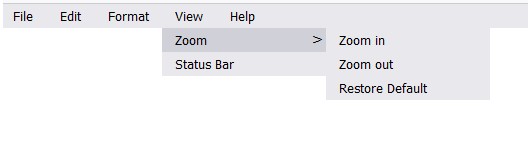
We discovered the real power of CSS, when we had a lesson with Metaxas, where he created a windows navigation menu, only and only by using CSS. That was honestly mind blowing, and really motivated me to learn how to use the CSS selectors good. To do that, I read trough most of the pseudo classes in mdn, and also watched some YouTube tutorials on the variety of CSS selectors. To put this in practice I decided to recreate the page that he did in class, so I opened up a notepad, and started writing my html.

I started out by creating the HTML structure, based on the navigation bar I saw in notepad. I started by using the >‹ul› element, but then I remembered that Metaxas used something different. I then searched in google for the different type of lists, and didn't find anything useful. Then I searched for semantic navigation listing and found the >‹menu› element. After that I went and searched for the >‹menu› element in MDN and found this, which explains that the >‹menu› element is the same as the >‹ul› element, but it is used for "interactive items". Because of that, I concluded that using the >‹menu› element would be more semantically correct, and so I did.
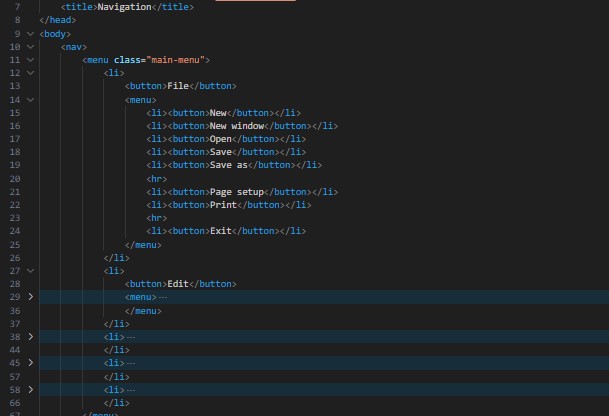
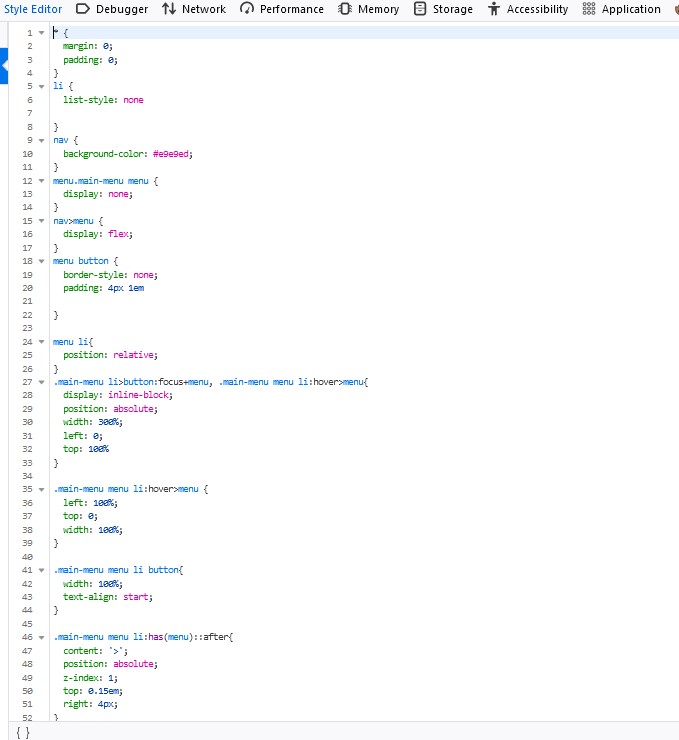
Afterwards I hopped in the Firefox development tools, because it is more convenient to write code directly there, and started developing my CSS. I had some difficulties in the way, for example how to nest the lists properly, and how to make the buttons clickable, but then to make the submenus appear only when hovered. I also didn't know how to do was how to check if the parent element contains something inside of it, and change the parent itself, if it does. I searched for it in the internet, and found this stackoverflow article that helped me to find the :has pseudo selector, and then use it. I managed to make a fully functional version at the end, and I haven’t been happier.
Animations

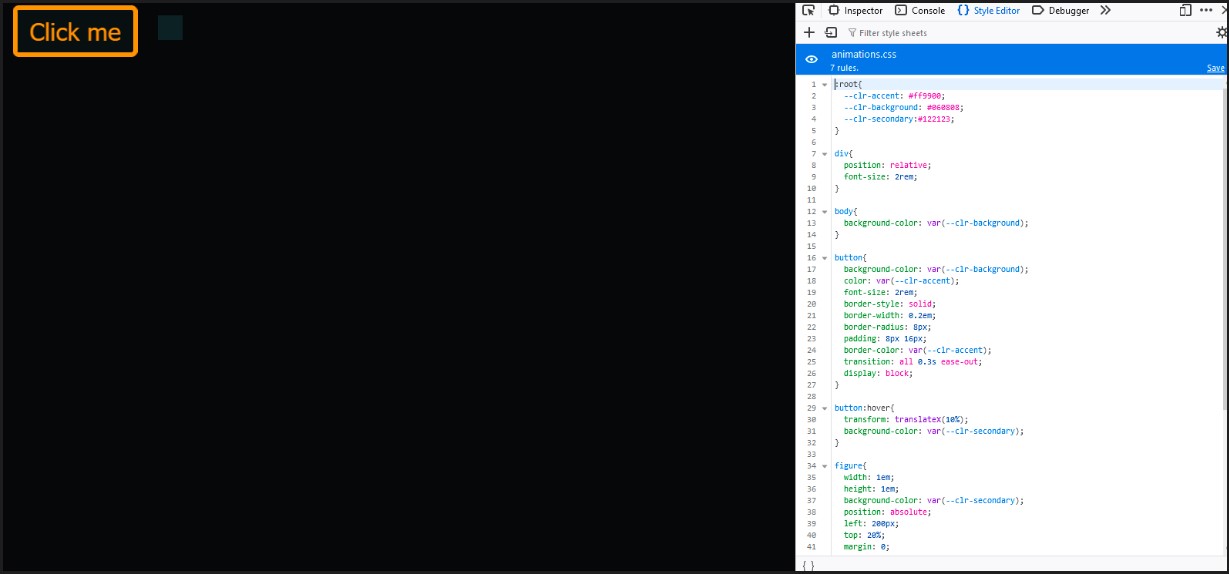
I wanted to implement what I know for CSS variables and to experiment around with CSS animations a little bit, so I familiarized myself with how they work. I watched a short tutorial by SlayingTheDragon for both variables and animations, and then created this small sandbox environment, where I played around with the transition of this button, and animated a small box next to it to go left and right.
The Blockquote Element

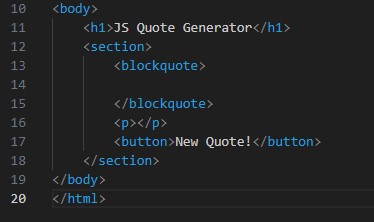
While developing a quote generator web page, to practice using JS, I wandered if there are semantic elements for quotes in html. Happens there are, as you can read in this MDN article. That’s how I learned about the `blockquote` and `quote` elements.
Learning programming with JavaScript

First steps

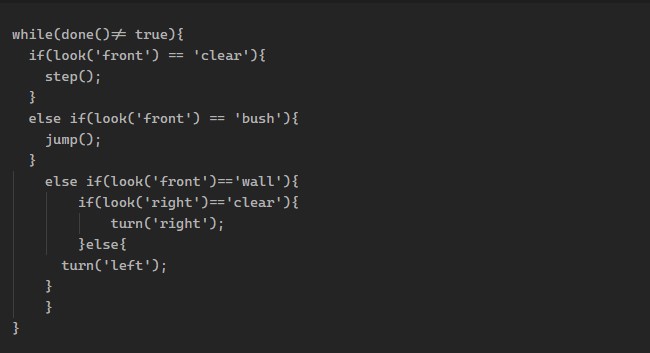
While our first lesson for programming with Metaxas, we had to create a JavaScript code that can solve the levels of that game(note: it is played in the browser console), which I managed to do with the following code:

In the process, I had to check this MDN article in order to see how and if I am using if and else correctly.

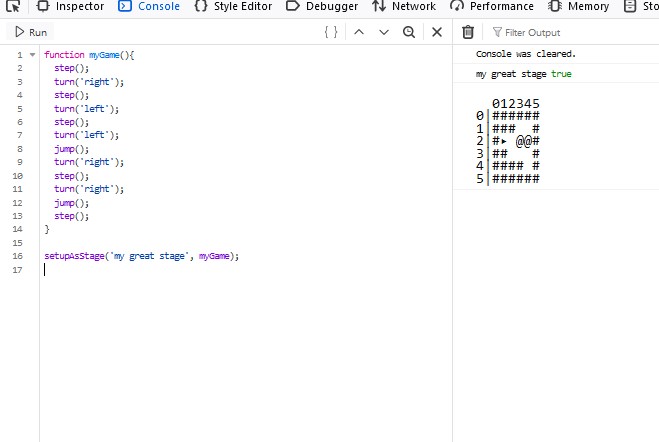
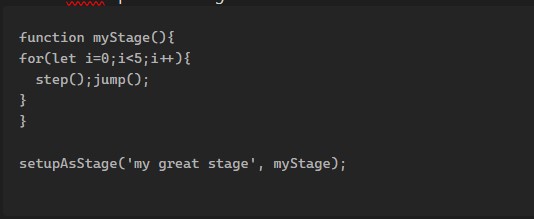
Afterwards, I understood how to create my own stage:

From that we had the task to create the stage that will brake the solution that we coded earlier. I thought about it, and saw that my solution can’t see if there is a bush, right after the bush in front of me. That means that if my character sees a bush, it will jump, and if there is another bush after it, it will fail. Now I had to figure out how to create such a level, so I got a piece of paper and drew a small path that has to happen, in order to create a level with two bushes, one after another. That is how I created the following level, that breaks my solution:

I, afterwards, tried to think of how to solve this problem, but didn’t find any way, since the character cannot see behind what’s in front of him, and cannot return from where he came, so he has no ability to understand if there is another bush after the one, in front of him.

The forEach Method

We had a class, were we constructed a JS snake game, using arrays. During the next few classes, we were given challenges, so we can understand arrays, and their functionality better.

One of the tasks was to rewrite this code, using the forEach method:

for(let y=0, rowCount=snakeMatrix.length; y<rowCount; y++){
    for(let x=0, row=snakeMatrix[y], colCount=row.length; x<colCount; x++){
        if(typeof row[x] == 'number'){
            row[x]++;// <==> row[x]=row[x]+1
           
            if(row[x]>tailLimit){
                row[x]='';
            }
        }
    }
};

To undersand the forEach method, I wnet to these sources:

What I took from them is that forEach basically iterates trough each element of an array, and executes a function on them.

After I got a grasp of the concept, I applied it to the task, and it now looks like that:

snakeMatrix.forEach((row) => {
    row.forEach((element, i) =>{
        if (typeof element == 'number'){
            row[i]++;
            if (element>tailLimit){
                row[i]='';
            }
        }
    })
});

The reduce Method

The next method in this sequence of tasks was reduce. We had to convert the following code, using it.

let str='';
        for(let y=0, rowCount=snakeMatrix.length; y<rowCount; y++){
            for(let x=0, row=snakeMatrix[y], colCount=row.length; x<colCount; x++){
                if(gamePaused){
                    str+='*';
                }else
                if(typeof row[x] == 'number'){
                    if(row[x]>0){
                        str+=snakeAlive?'#':'x';
                    }else
                    if(row[x]===0){
                       str+=snakeAlive?'@':'x';
                    };
                }else{
                   str+='-';
                }
            };
            str+='<br/>';
        };
        document.body.innerHTML=str;

This task was hard. Initially I understood the concept quite fast, but then, when I had to apply it I ran in a lot of problems. The main one was that I didn’t understand how the initial value works, plus I didn’t know where to put it.

At the end I managed to convert it, without looking up answers, or asking a chatbot, which makes me verry happy, because I spent a few hours on it xd. Here’s the result:

let str = snakeMatrix.reduce((prev, row) => {
    return prev + row.reduce((accumulator, element) => {
        if (gamePaused) {
            return accumulator + '*';
        } else
            if (typeof element == 'number') {
                if (element > 0) {
                    return snakeAlive ? accumulator + '#' : accumulator + 'x';
                } else
                    if (element === 0) {
                        return snakeAlive ? accumulator + '@' : accumulator + 'x';
                    };
            } else {
                return accumulator + '-';
            }
    }, '') + '<br/>'; }, '');
document.body.innerHTML = str;

The way it works is:

  1. It goes through the matrix, as `prev` is the previous value of each element, and `row` is the current value
  2. It then goes to that `row` and starts iterating trough it in the same principle, but here `accumulator` is the previous element, and `element` is the current one.
  3. It adds every new string to `accumulator` and then it adds the result of `accumulator + '
    '` to `prev`
  4. When `prev` is equal to everything summed up, that gets assigned to a string called `str`

I had to go through this MDN article a couple of times to understand that you have to add `''` when you use the reduce method, so that is the initial value, and it starts from index 0, when using strings, and not from index 1.

Developing the Snake Game

I decided to code the snake game, I talked about above, from beginning, so I know I understand it properly. I was not to look the code that we wrote in class, for anything but the things we agreed to still not look up, as visualizing the game on the webpage.

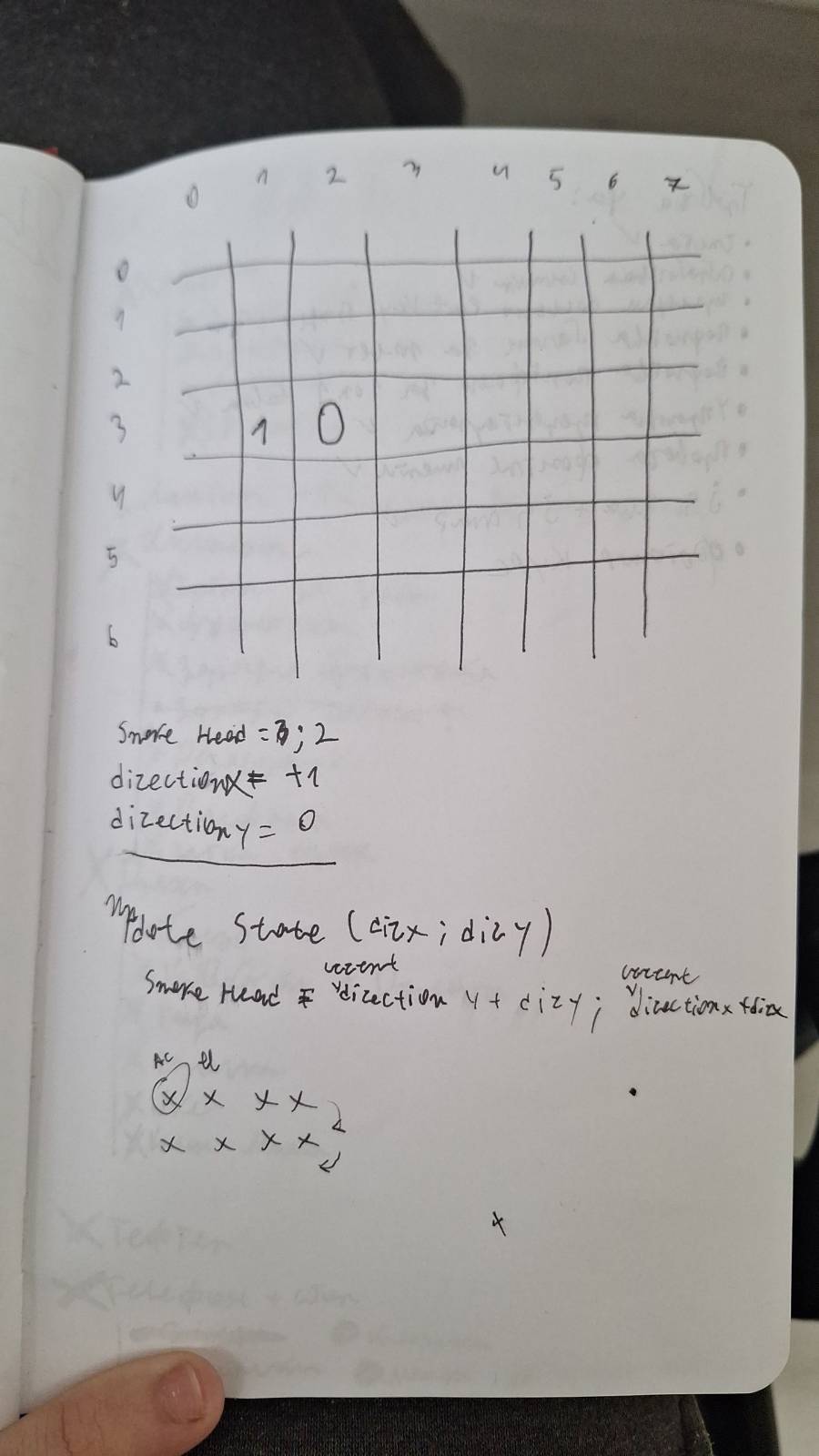
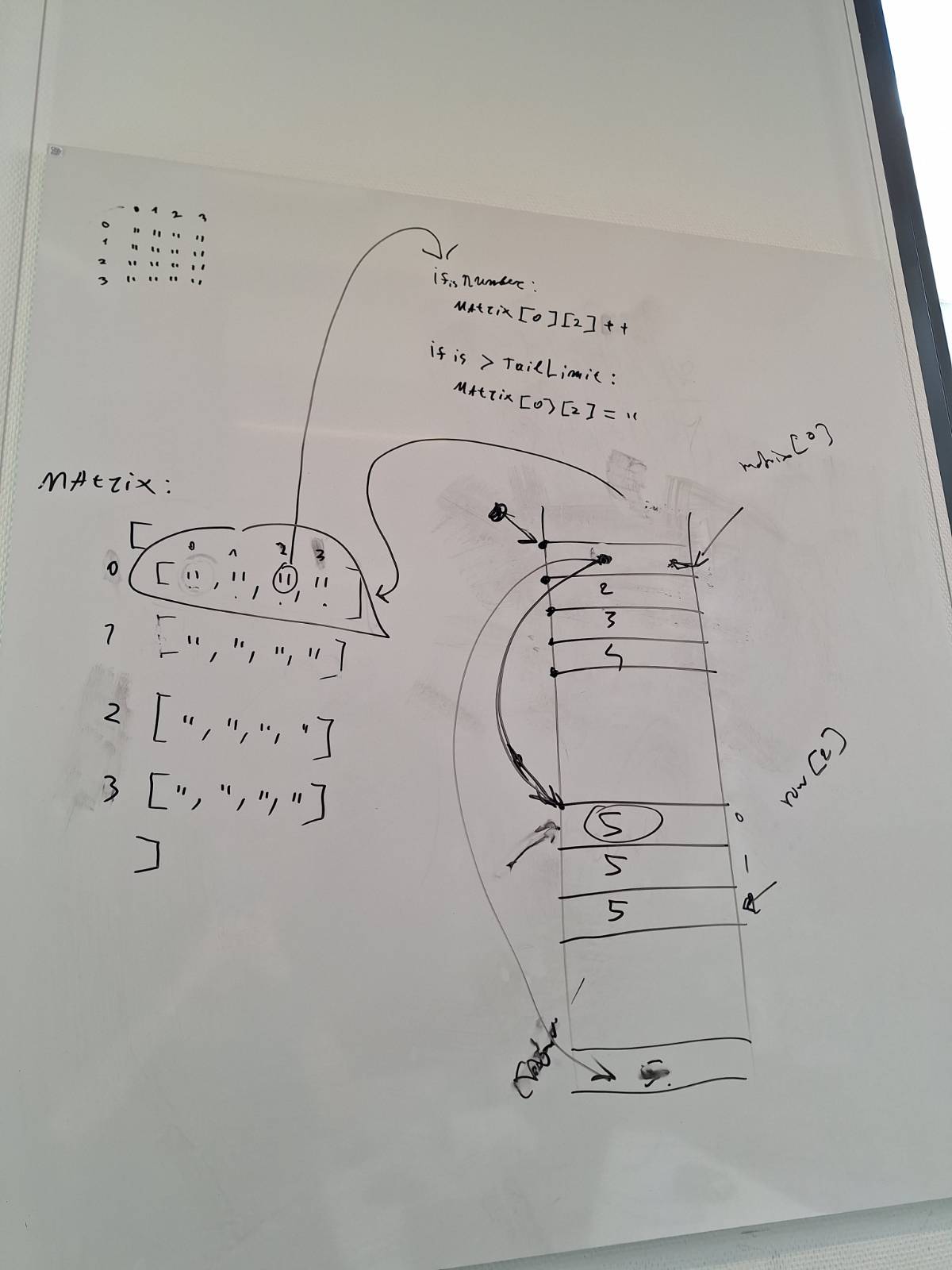
I went through a lot of challenges and started from beginning twice. I found out how to visualize some things on paper and help myself grasp the things I couldn’t on a monitor.

I also utilized the forEach, and reduce methods, and in the end I managed to come to a almost final version, where you can play and pause the game, but bombs and treats are missing. Verry happy with myself. You can play it here.

Using the DOM

It is very important to understand the DOM, to work with JS efficiently. To do that, after the initial explanation, that I got from Metaxas, I went to watch some videos, about the DOM, to insure I understand it correctly.

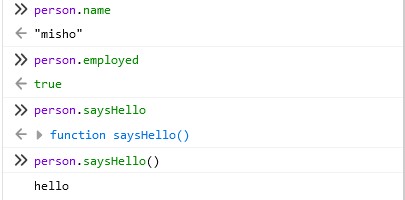
Watching them, I understood that the DOM is basically a big JS Object, but I didn’t have a clue what an object is xd. The next step was to research JS objects, which were easy to grasp. Basically, they consist of key: value pairs. The key would be a name, and the value, well… the value. They can have properties and methods. Methods are basically properties, that are functions. Here’s an example, where saysHello is a method, and everything else are properties

const person = {
name: "misho",
employed: true,
saysHello: () => console.log('hello')
}

Now that I learned about objects, I had a way better understanding how the DOM works. The next step was to learn how to use it. I started watching this YouTube tutorial, and taking notes and experimenting with different methods and properties of the DOM. The most basic things would be:

  • Different ways of selecting elements.
  • Styling elements.
  • Creating and removing elements.
  • Modifying text in elements.

  • Creating and modifying attributes and classes.

Quote Generator Game

To practice what I’ve learned I made a simple web page, that generates random quotes. Here you are going to see what and how I did, to make it work.

Click on the video to play the game.

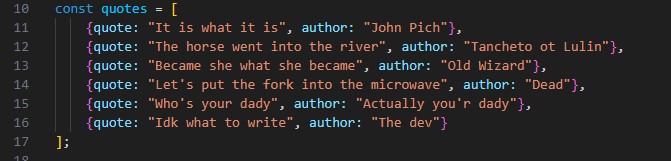
I first created an array of objects, each consisting of two properties: quote and author.

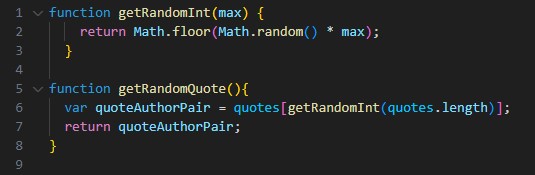
Afterwards I had to randomize them on a click of a button. From this MDN article, I learned how to generate random integers in JS. Then in my code I made two functions: one for generating random integers, and another for picking a random quote.

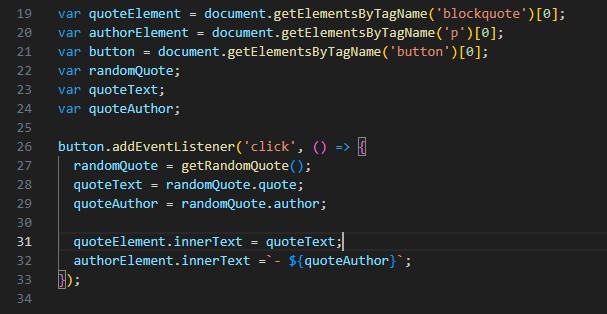
In the rest of the code, I just define variables, utilize the defined functions, on a click of a button, and then insert the quote and author in the desired places.

In conclusion, building this random quote generator helped me improve my JavaScript skills and create an interactive web page.

Modal Pop-up.

Once again, for practicing reasons, I created a web page, in which you can show and hide a modal box, with the use of JS. I will be explaining how the code works in the following paragraphs. Click on the video to try it yourself.

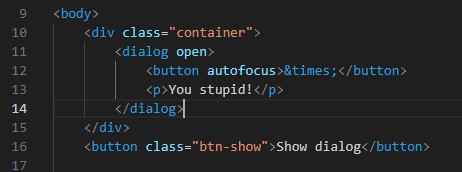
The HTML basically has a dialog box (our modal) in a div, with the purpose of darkening the background, when the modal pops up. In the modal there is a ‘close’ button and a friendly paragraph that tells you how nice you are. After that we just have a button, for showing us the modal, when pressed.

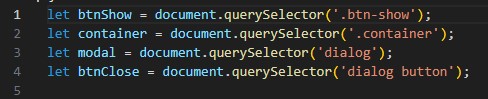
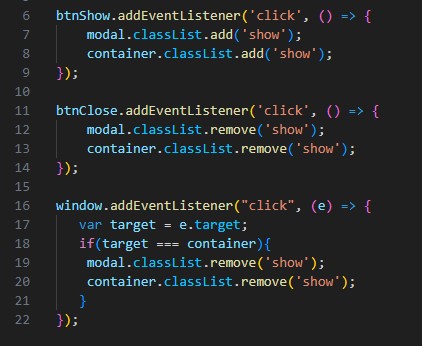
Then in our JS, I first select the elements I will need from the HTML.

Afterwards I initialize 3 event listeners. One for the show button, one for the close button, and one for if the user clicks outside the modal box. If he clicks on the ‘close’ button, or outside of the modal, It will hide it, and if he clicks on the ‘show’ button – it will show it. The way we show and hide the modal is through CSS, and in JS we just add or remove the ‘show’ class.

In summary, I created a web page with a modal box that can be shown and hidden using JavaScript. The HTML includes a dialog box with a 'close' button and a button to display the modal. JavaScript handles the showing and hiding by toggling a 'show' class through event listeners.


Git

Here I talk about how I use version control for my projects.
In order to keep track of my progress, while coding my portfolio, I made a repository in gitlab , where I store the changes I make. The other personal git repository I have is the one for project X, which you can find here.

In there I have two branches - `main` and `dev`. I commit my changes to `dev` almost all of the time, and when I have a somewhat completed version, that I want to save, I merge it into `main`.

The way I work with git is trough the console. When I make some changes, I go through the following commands:

git pull
git add. (or the file/change I wnat to add)
git commit -m "comment"
git push

    That way I:

  1. Make sure I have the newest version and I won't cause collisions.
  2. Add all fo the changes to my local "storage".
  3. Make the commit with the comment, where I specify what does the commit consist of.
  4. Push it into the server.

Shortly I’ve talked about where you can find my repository, the branches I have and method I use, and the commands I use for version control.


My JS Pokemon Picker

Introduction

I will tell you how I created this website, which throws a picture of a pokemon you type out, using JS, and how that helped me learn about:

  • JSON
  • JS Promises
  • JS Fetch
Click on the video to try it out!

How I Got There

Before I decided to make that page, I was just trying to learn and exercise stuff from our lecture. Here I’ll tell you what they were, and how they lead me to making pokecatch 😊.

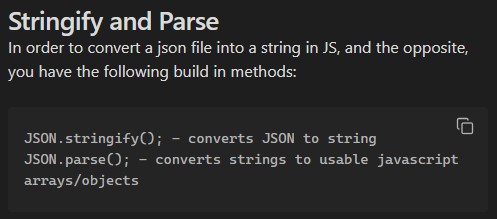
First, I started researching JSON. Other than the fact that JSON is basically a simplified JS object, one of the first things I learned were the stringify() and parse() methods.

A snippet from my notes

Afterwards, I stumbled upon fetch(). I understood that is a JavaScript function, that we can parse a URL or a file path. It is used to make HTTP requests to fetch recourses (json, images, files, etc.) asynchronously.

Example: fetch("../person.json)

'It is important to know that fetch returns a promise!' Is the big, bolded thing in my notes, that made me wander – what does that mean???

From there I started researching JS Promises, and boy was it a mess. After a lot of head banging, article reading and watching all of these tutorials a couple of times ( JavaScript Promise in 100 Seconds, JavaScript Promises In 10 Minutes, 16.11: Promises Part 1, 16.12: Promises Part 2, What are JavaScript PROMISES? 🤞 ) I kinda got a grasp of it, and started playing around. Here’s one of the experiments I did, where I create a promise, and look when and how it will execute:

var count = 0;
function takeABreak(){
console.log("Stnad up from the chair");
console.log("Go outside");
console.log("Sit in the garden");
console.log("Conut to 20");

for (let i = 0; i<20; i++){
count++;
}
return new Promise((resolve, reject) => {
if (count == 20){
resolve('brakeTaken');
}
else if (count > 20){
resolve('tooMuchBrake');
}
else{
reject('brakeNotTaken');
}
});
}

takeABreak()
.then(res => console.log(res))
.catch(error => console.error(error));

console.log('something else is happening');
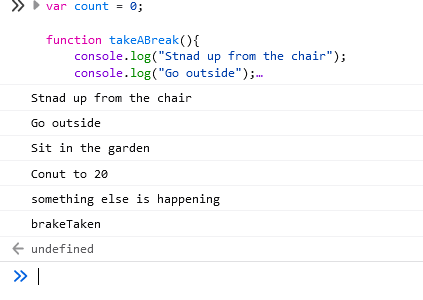
Result:

Note: ‘something else is happening’ is printed before brakeTaken. This is because the promise gets executed after a curtain period, and the other code continues to run while it is processing everything else.

The two methods used are .catch() and .then(), where .catch() is for errors, and .then() for returning different values.

Great! Now let’s go back to fetch(), where we initially started. Knowing all of this, helped me realize how fetch works, and why we use .then() and .catch(), when we want to get some kind of a resource (in our case a json file). Example:

fetch("../person.json")
.then(response => response.json())
.then(value => console.log(value))
.catch(error => console.error('error message'));

To summarize all of this: before making that page, I was exploring concepts from our lecture. I started with JSON and learned about stringify() and parse(). Then, I discovered fetch() for asynchronous HTTP requests and got curious about JS Promises. After some research and experiments, I understood how to use .then() and .catch() with fetch(). Now I had to create the webpage.

The Page

To create my Pokemon picker page, I started with the basics of building an interactive form. Here's how I put it all together and what I learned along the way:

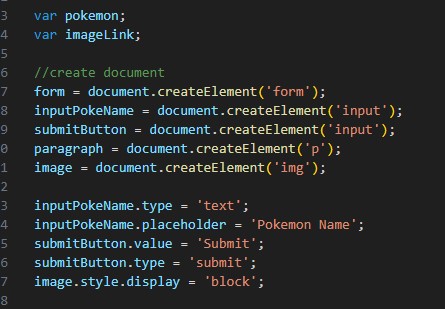
First, I created the necessary HTML elements dynamically using JavaScript. I made a form with an input field for the Pokemon name, a submit button, a paragraph to display messages, and an image element to show the Pokemon.

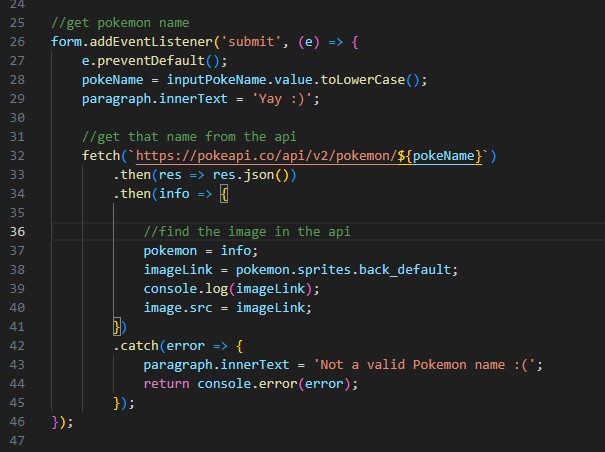
Next, I set up an event listener on the form to handle the submit event. When the form is submitted, it prevents the default form submission and gets the Pokemon name entered by the user. This is where my exploration of the fetch() function and promises came into play.

In the fetch call, I used .then() to handle the successful response, where I parsed the JSON and extracted the Pokemon image URL. If the fetch failed (e.g., if the Pokemon name was invalid), I used .catch() to handle the error and display an appropriate message.

Conclusion

Here's what I learned in the process:

  1. How to dynamically create and manipulate HTML elements using JavaScript.
  2. The importance of using fetch() for making HTTP requests and handling the responses with promises.
  3. How to handle user input and display feedback based on the success or failure of the fetch request.

By combining all these concepts, I created an interactive webpage that fetches and displays a Pokémon image based on user input. This project solidified my understanding of JSON, promises, and working with APIs in JavaScript.


JS Profile Minigames

Introduction

In our third project of the semester, we had to create a webpage that explains every profile, and then a separate game for each one, that consists of an activity, related to that profile. I wanted to create the games, so I practice my JS knowledge, and my team agreed with that, so here I explain how and what I did for them.

Process

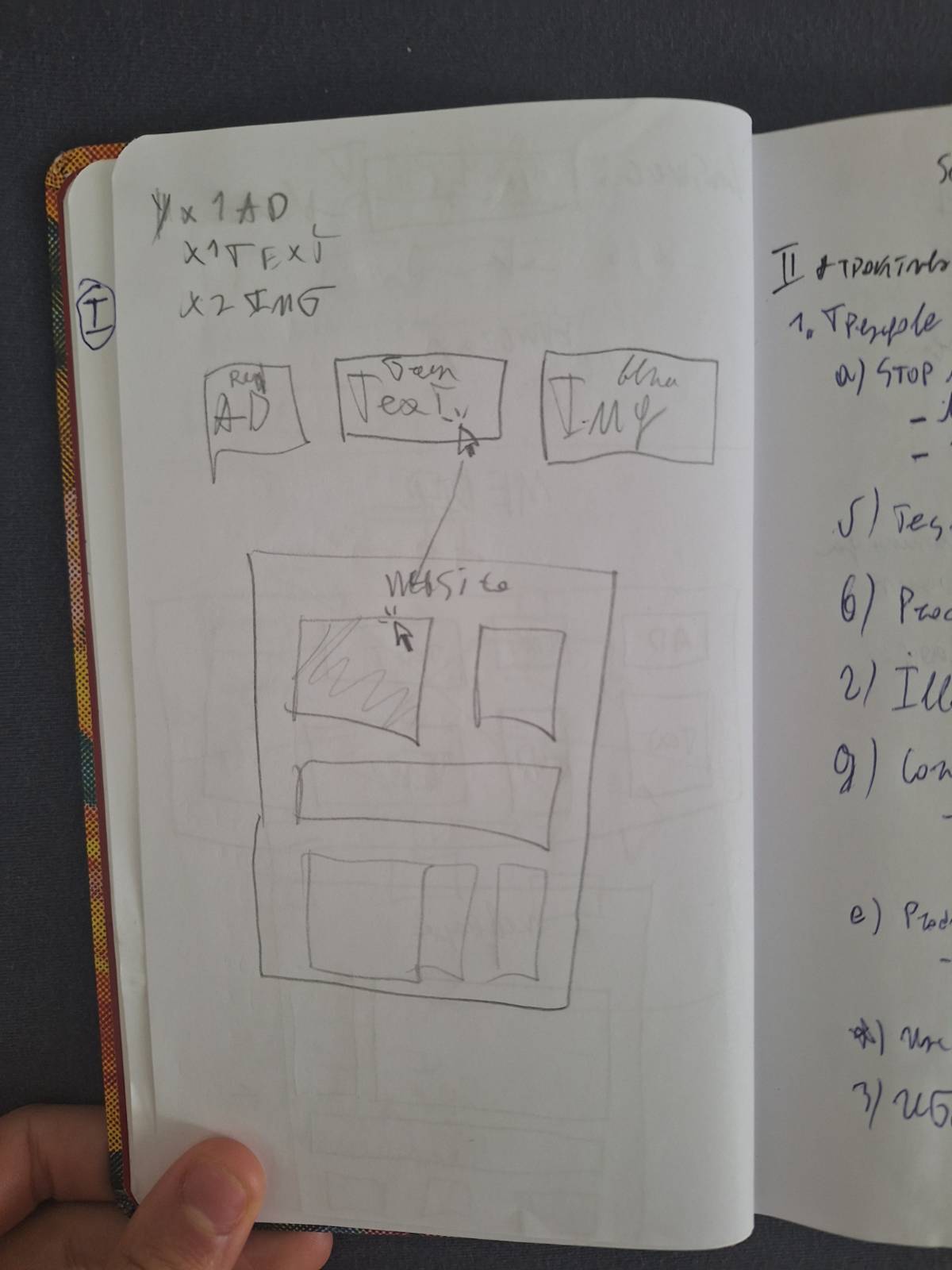
I first sketched out how I want the games to be and look like and have a basic understanding of their functionality.

Then I started creating the JS, without having any HTML and elements to work with, but more of just making the algorithm on which the game would work. Wherever I had to interact with an element I just commented that I must do something in the future.

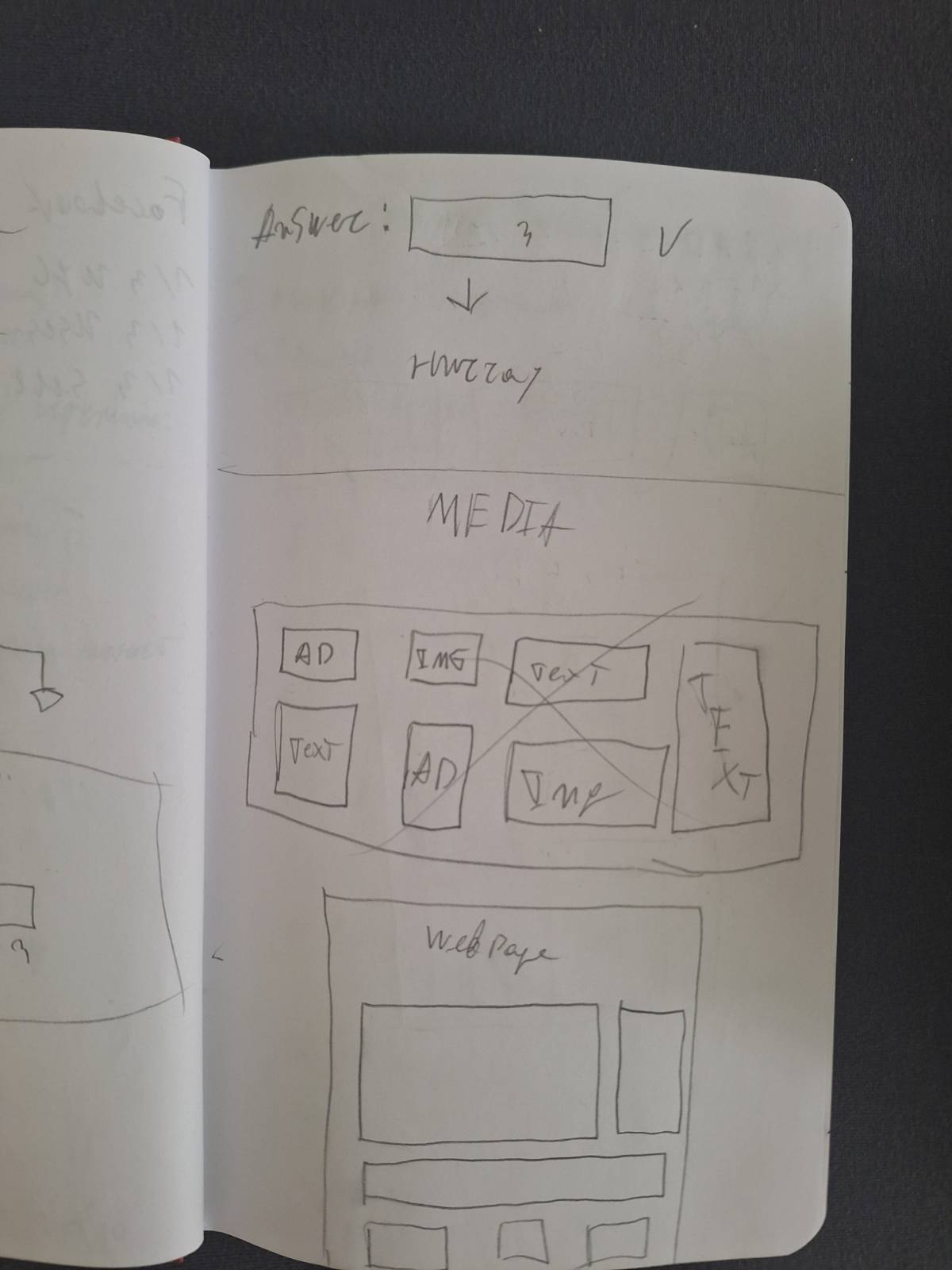
After doing so, I started writing the HTML and CSS for the separate pages and making them functional. The most fun and challenging one was the media game, where you create a webpage layout, by coloring different elements on the page.

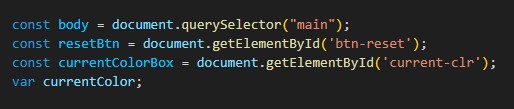
The first thing I do there is to get the different elements and make a variable that contains the current color.

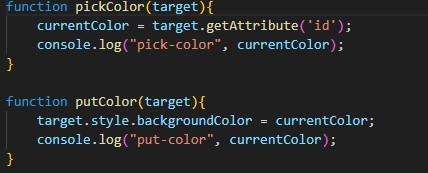
Then I define 2 functions – pickColor(), and putColor(). They are pretty straightforward: The pickColor() function saves the color that you have clicked on, and putColor() paints the object you have clicked with the picked color.

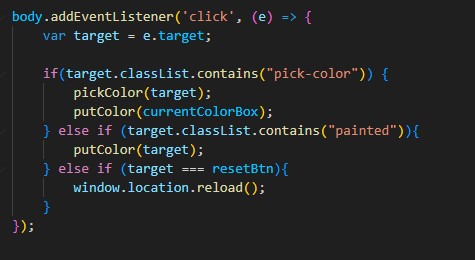
Afterwards I run the functions, depending on what the user has clicked.

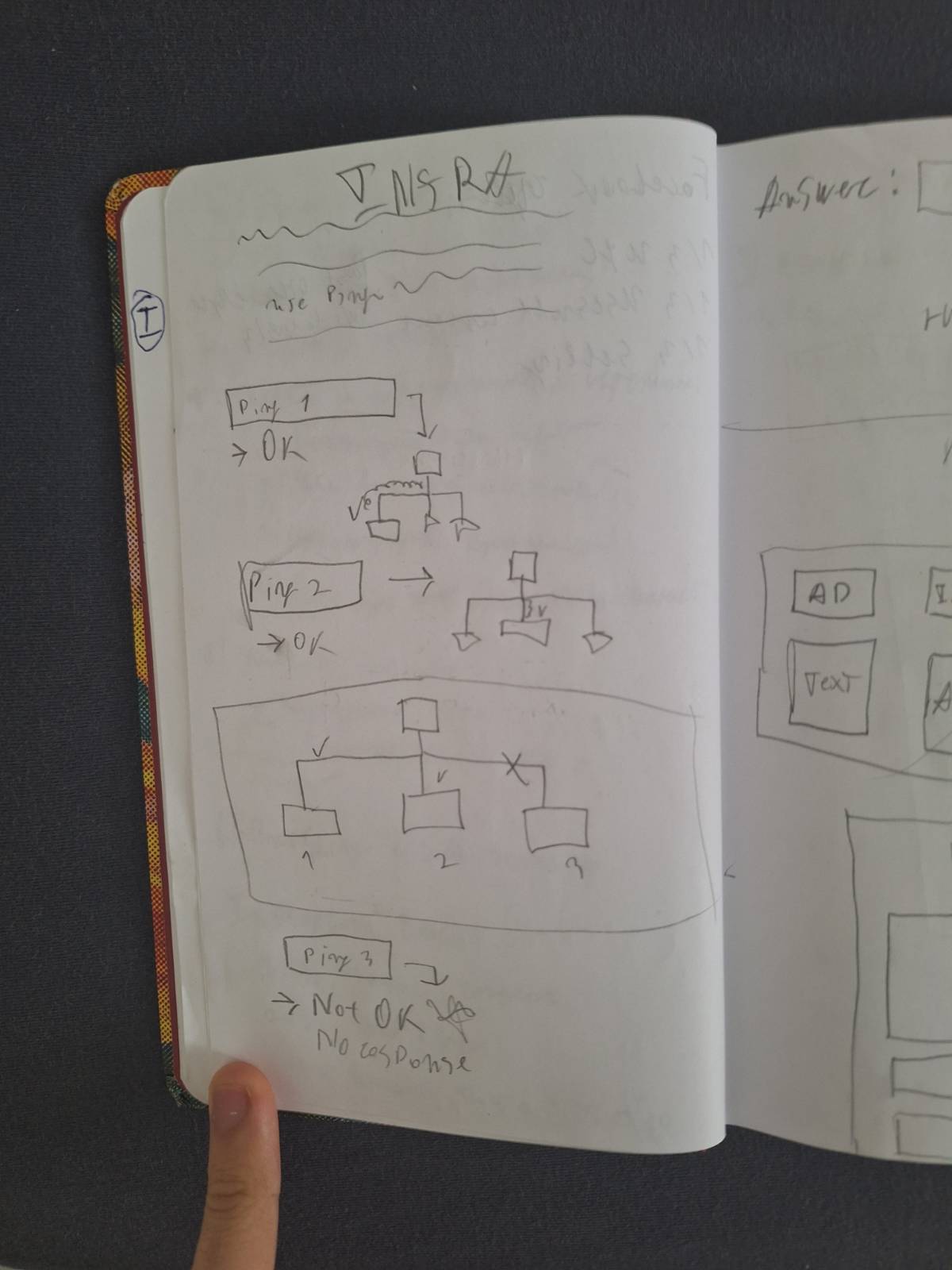
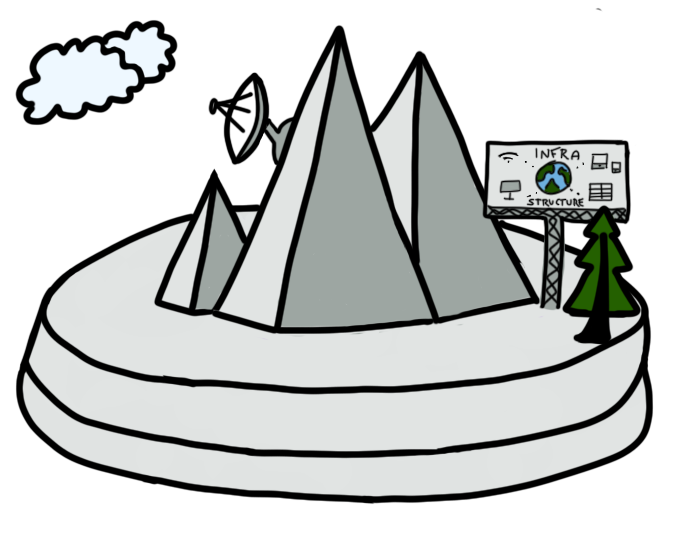
The other interesting to develop game was the one for the infrastructure profile, since I had to simulate console output, and check various answers. It consists of a small challenge that simulates a small “network” where three PCs are connected to a router. One of them has a problem and has lost connection, and the user has to find out which one is it by using the “ping” command. Then he can check if he was right by submitting the answer.

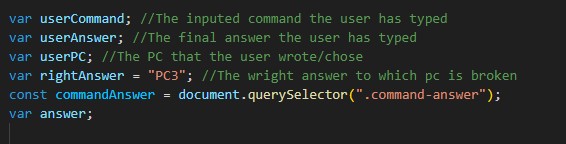
There I first define the initial variables and attributes.

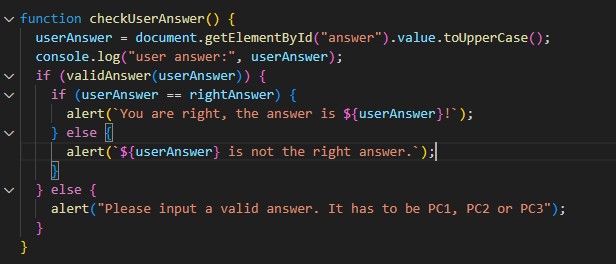
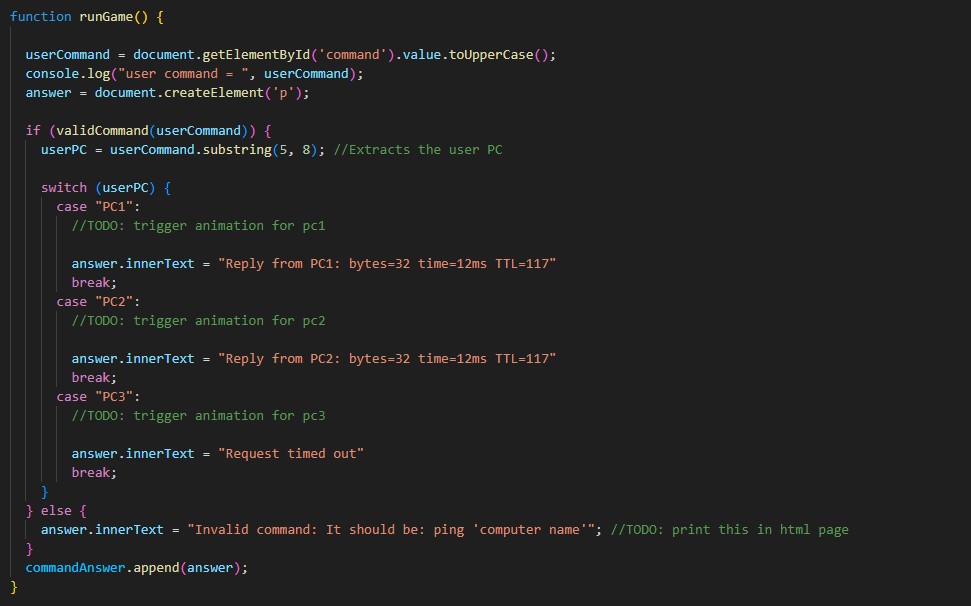
Then I create 3 functions: checkUserAnswer(), runGame(), validCommand(), and validAnswer().

  • If you can't see the images, click to open in a new tab.

The game is initiated through an onclick event from html, which runs the runGame() function. It then gets the user command, checks it with the validCommand() function, and if it is valid, it gives responses, mapped on the different command versions. If incorrect it tells the user to put in a valid command.

When the user want’s to check his answer another onclick event is initiated, which calls the checkUserAnswer() function. It checks the validity of the answer, and then tells the user if he Is right or not.

Conclusion

The project aimed to develop a webpage explaining different profiles, each featuring a related game. The focus was on JavaScript. After sketching game concepts, coding began without HTML elements, followed by adding HTML and CSS for functionality. Games included a media layout colorer and a network troubleshooting simulator, each with interactive elements like verifying commands and answers.

This helped me exercise my JS skills, and learn more about REGEX in the proccess.

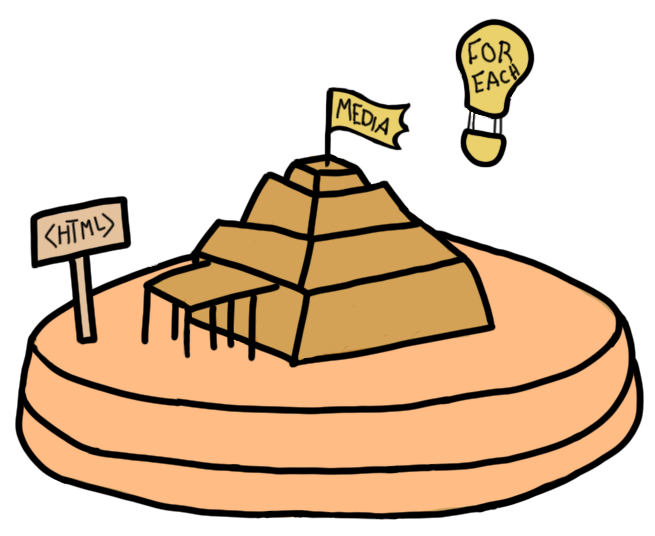
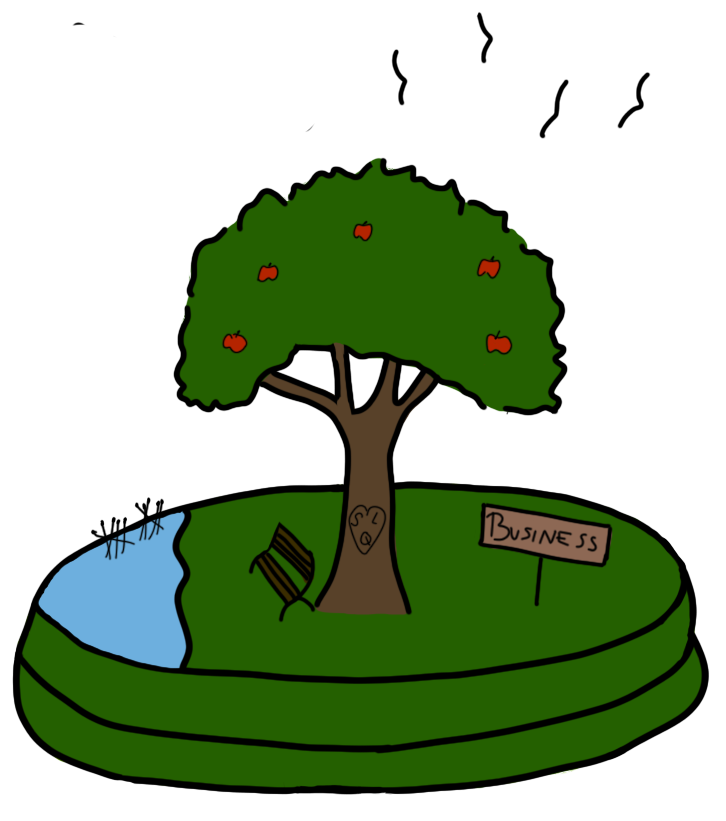
Click on an island to play a game:

  • Media Game
  • Business Game
  • Infra Game
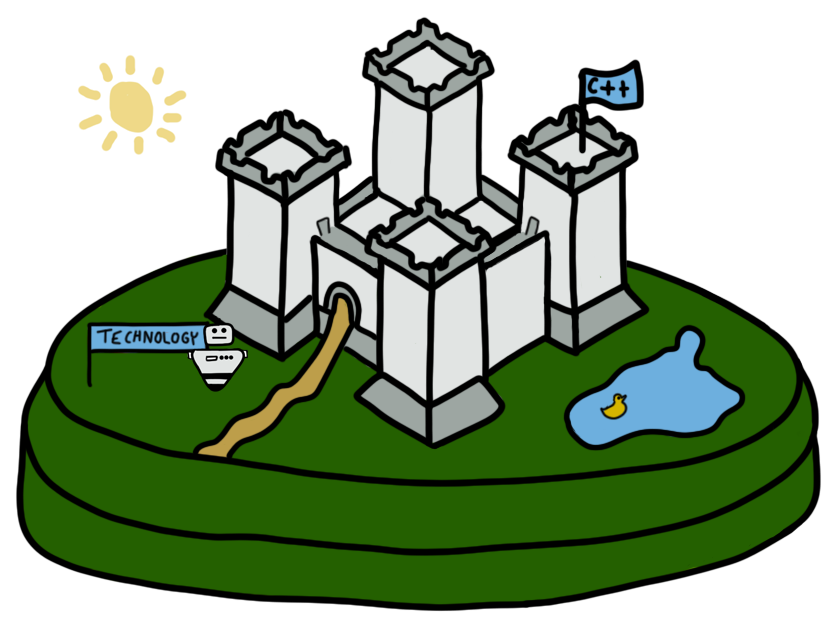
  • Tech Game
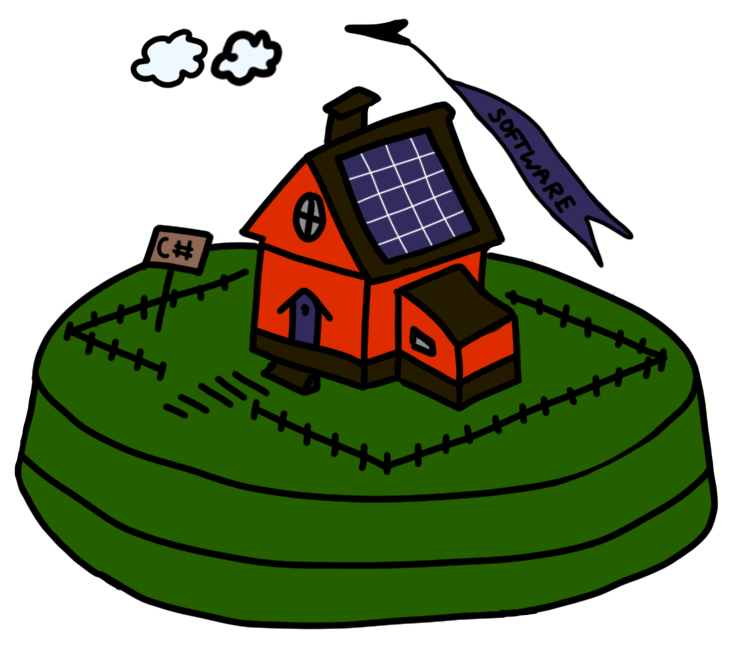
  • Software Game

Project X Photography Website

Git repository here.

Introduction

I decided to create a photography portfolio website for Project X. I went through a lot of challenges making it, and learned some new stuff, so I’m going to share them with you in that section.

Header & Footer

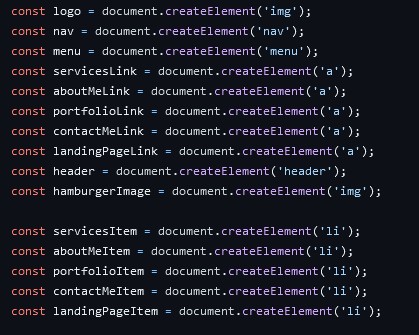
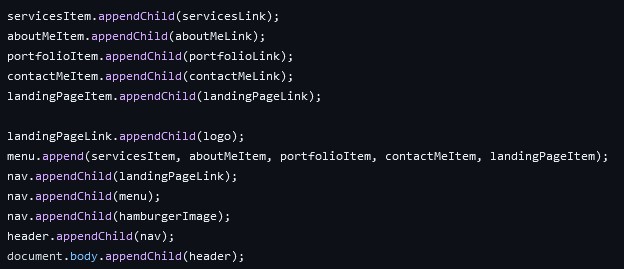
The first things I did were the header and footer. I decided to try and make them in JavaScript, so I won’t have to copy paste HTML everywhere, and I wanted to see if I can.

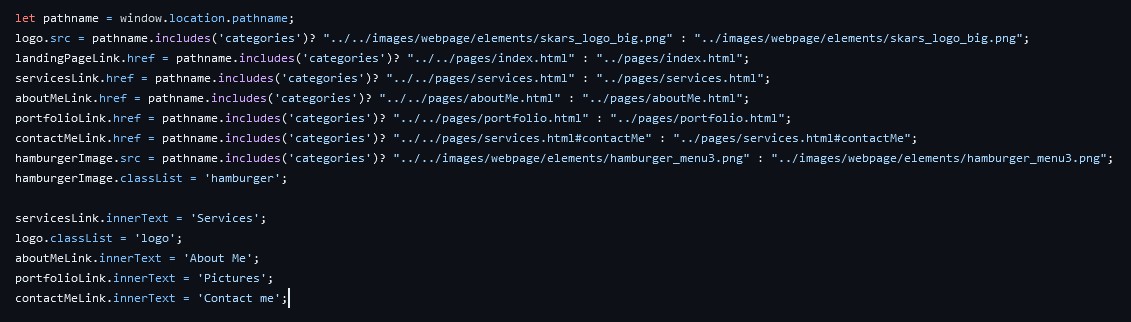
When making the header I went with an organization of the code, where I first create the elements, then I give them properties, and at the end I append them to each other. I later found uncomfortable and switched it for the footer.

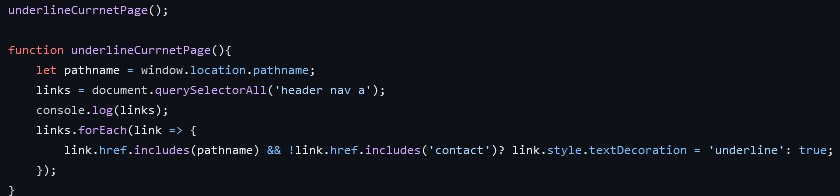
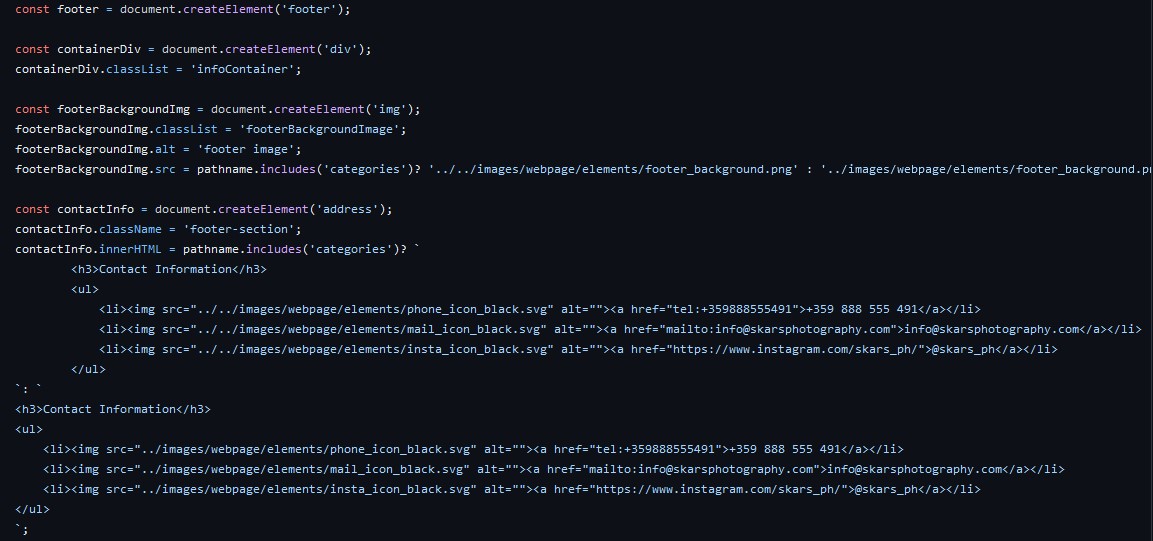
Notice in the second image, I check for if the current page is in a specific folder, so then I can change the pathname, and the code won’t break.

After I’ve basically created the header, there’s a little extra at the bottom, that underlines the page you currently are on.

As for the footer, it works the same way, but it is structured a bit better.

Image Slider

See the whole code here.

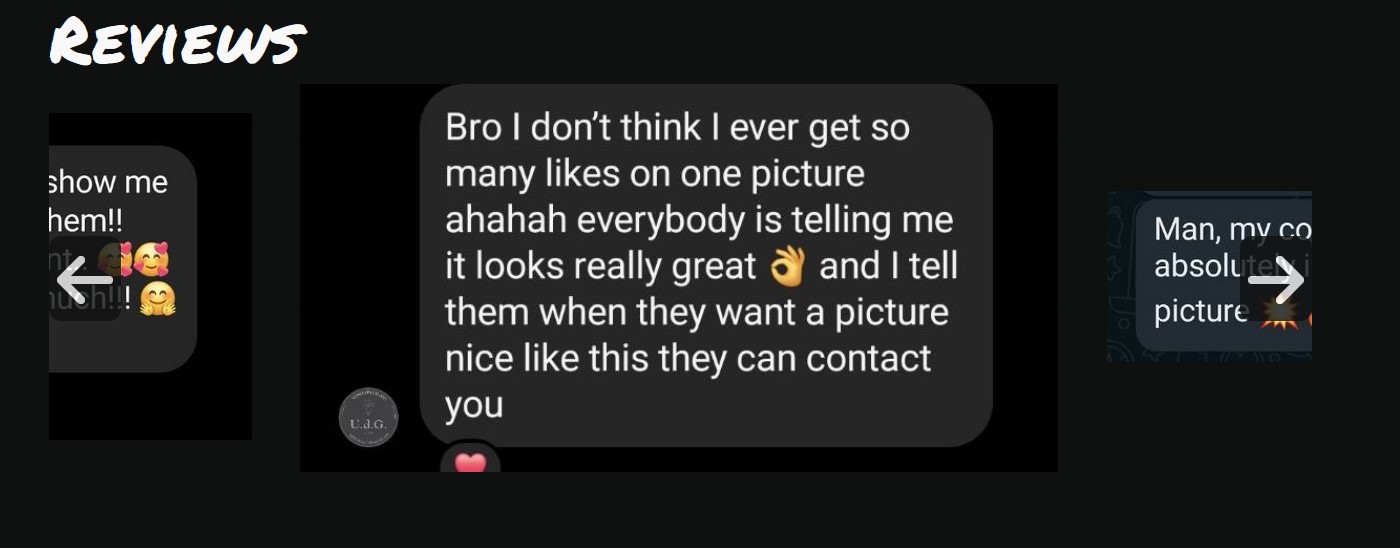
I had to include a part where I show user reviews. I wanted to make a image slider, which will automatically move, and the user could also move. That was hell.

I searched through a big amount of tutorials, and couldn’t find one that I liked. I finally stuck with one, and started redoing it. Guess what. It didn’t work. It was always breaking and the thing took me like 6 hours to make. I then deleted it and started over, but this time I would build it myself. Let’s break it down.

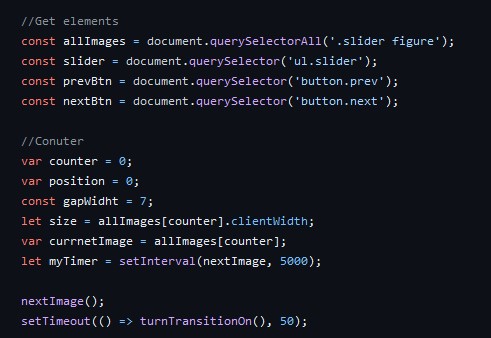
I first get all of the elements I need.

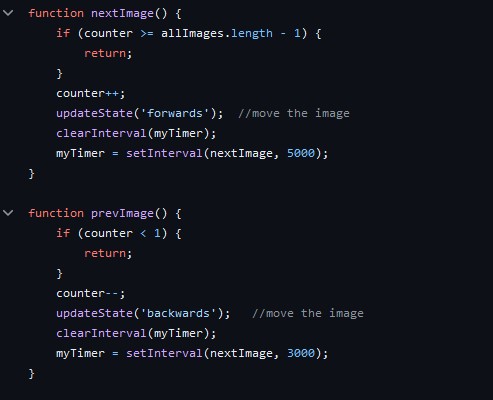
I then create two functions: nextImage, and prevImage, which do what you think they do.

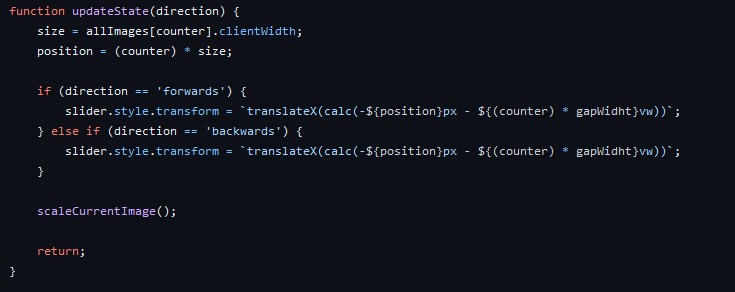
In there we can examine a new function: updateState.

Update state basically moves the slider by one image, in the direction you have provided. Then it also calls a function which basically just scales the current image and makes it a little bigger.

For the images to move my themselves, I added a timer that automatically calls the nextImage function. That timer gets reset when the user clicks on a button though, because otherwise it can get pretty annoying.

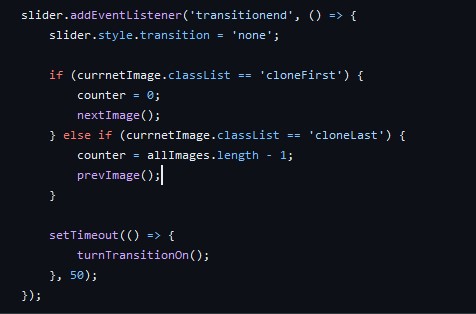
Now, the way we calculate by how much we need to move the slider is with the help of a counter. To make the loop and pictures start appearing from the beginning or end, I listen for every end of a transition, and then check if I’ve reached a cloned image, and if yes – then I reset the counter.

And now we have a working image slider.

The Gallery

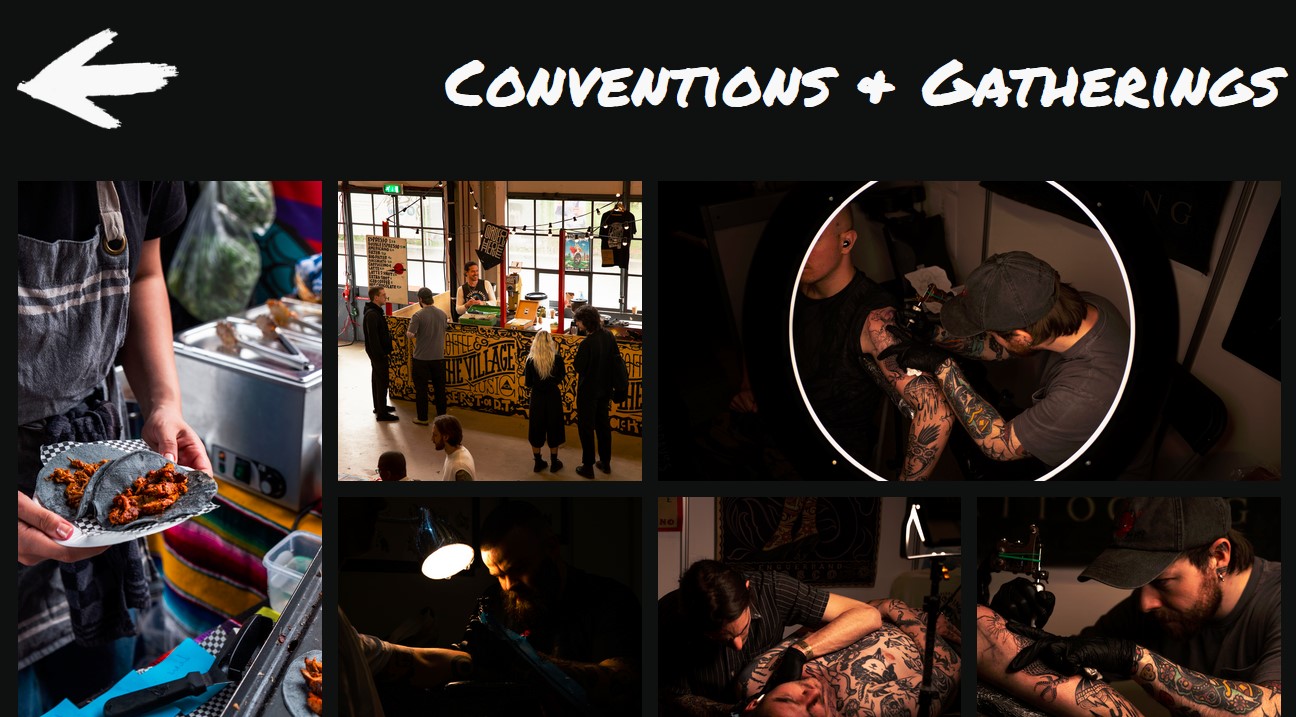
The other challenge I had to solve was to create a responsive gallery. Once again went through a bunch of shitty tutorials, full of div soups and so on, so I did it myself, with the help of CSS grid, and a little bit of JavaScript for creating a lightbox.

CSS code link.

HTML code link.

There is not much to explain about it, it’s just basic HTML and CSS code, but I learned a lot about CSS grid, which made my life a hell of a lot easier. For the JS it is just a simple script which updates the classes of html attributes, to change the styling.

you can also see here I discovered the DOMContentLoaded event.

Conclusion

In conclusion in creating my photography portfolio website for Project X, I learned to use JavaScript for dynamic headers and footers, built a custom image slider after struggling with tutorials, and gained a better understanding of CSS grid.